

Import and export points
Use Import and Export to transfer an endpoint’s variable definitions as a CSV file. This is useful when commissioning a device, preparing a longer point list in a spreadsheet, or reusing a configuration on another endpoint of the same protocol and role.
A definition contains an address, a type, an optional name and any applicable native type or byte order. It does not contain the latest measurement, quality, timestamp or trend history. Importing a CSV does not send write commands to a device.
The controls are shared by the desktop Tester and the Gateway web UI. They are also available when editing a Central configuration draft. The screenshots below use a local Gateway with simulated signals; no physical device is required to reproduce the example.
Find the controls
Section titled “Find the controls”- Open the endpoint from the Endpoints section of the explorer on the left.
- Select the Points tab.
- Find Import and Export in the row of buttons above the points table.
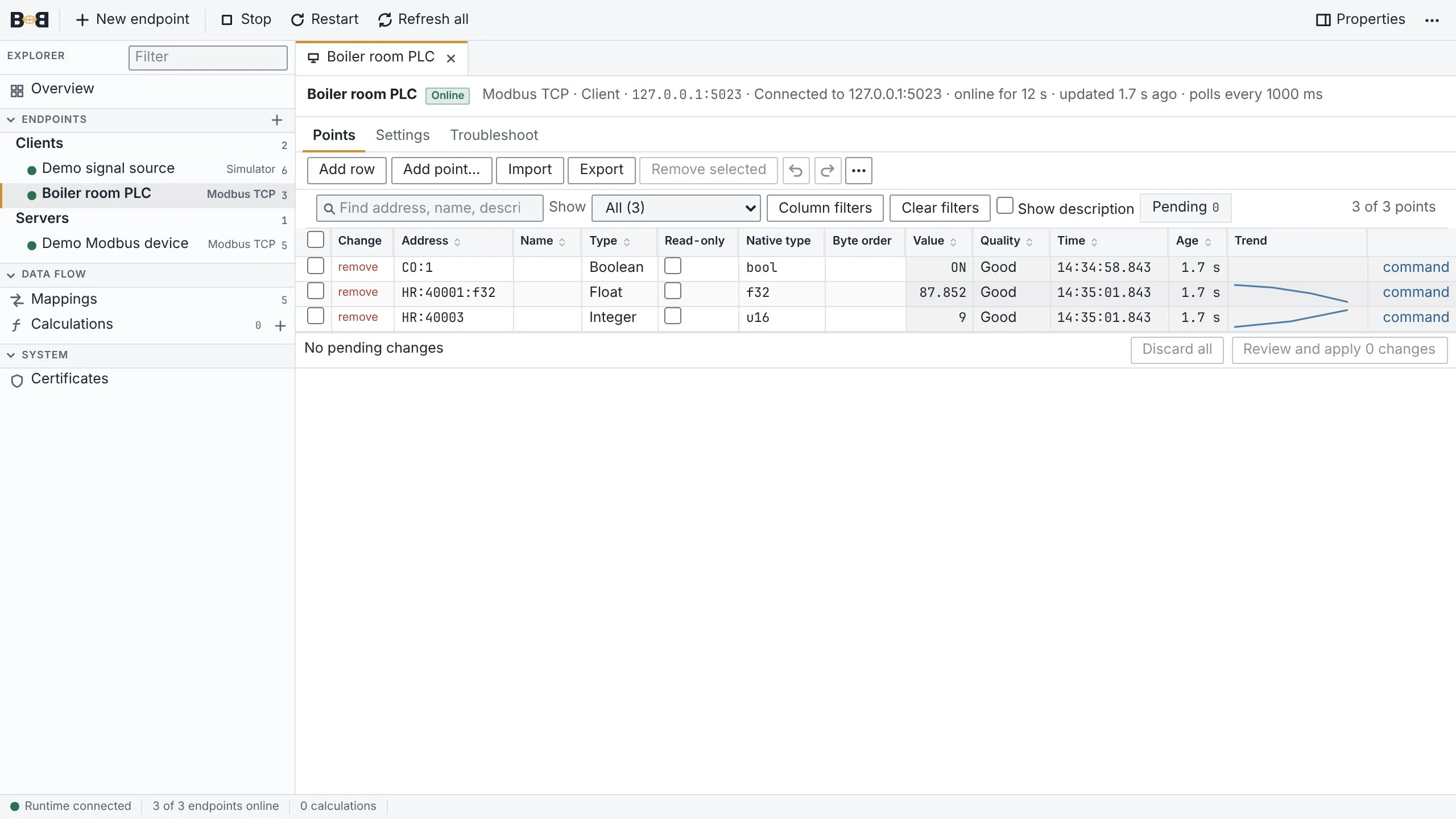
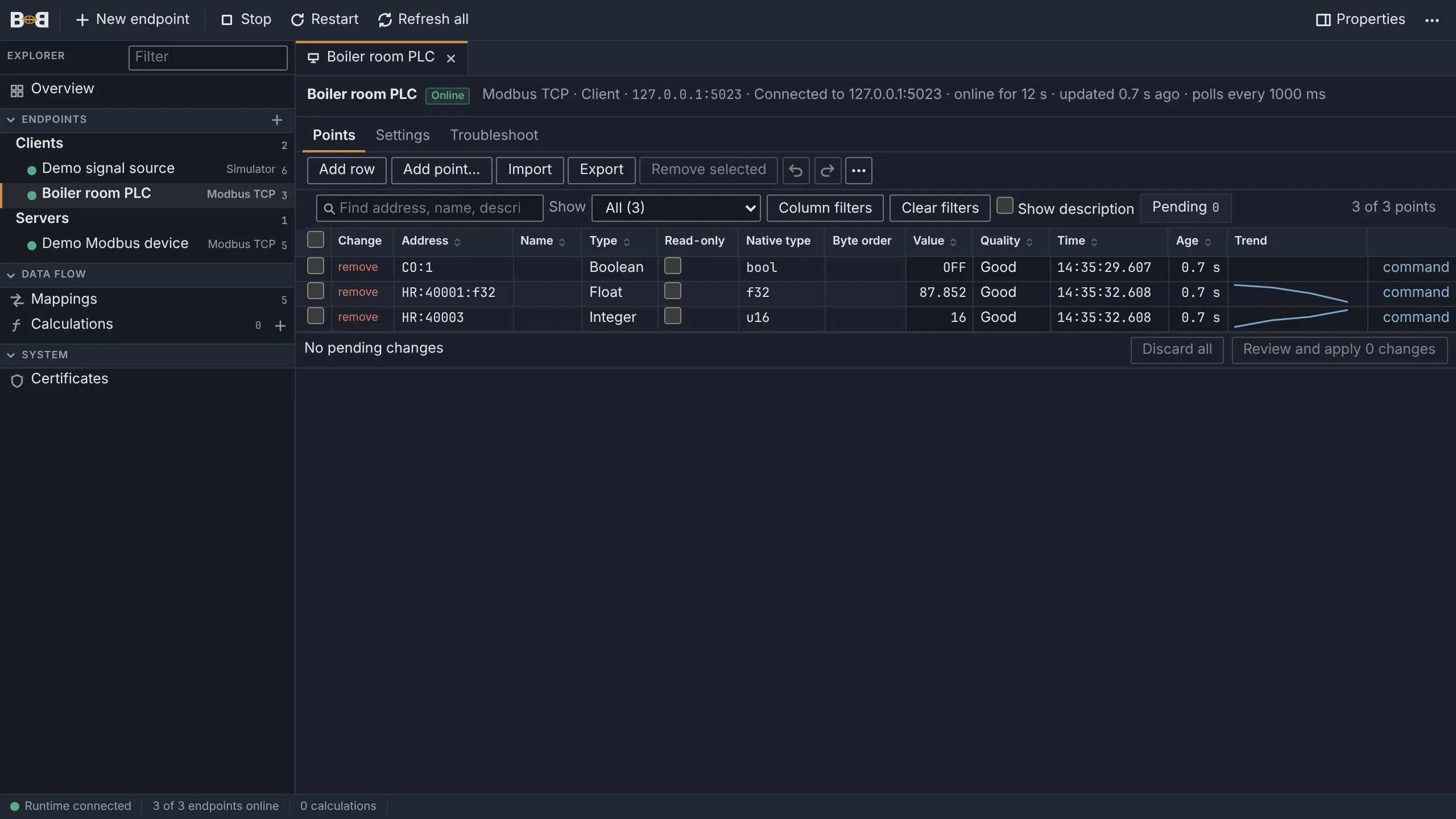
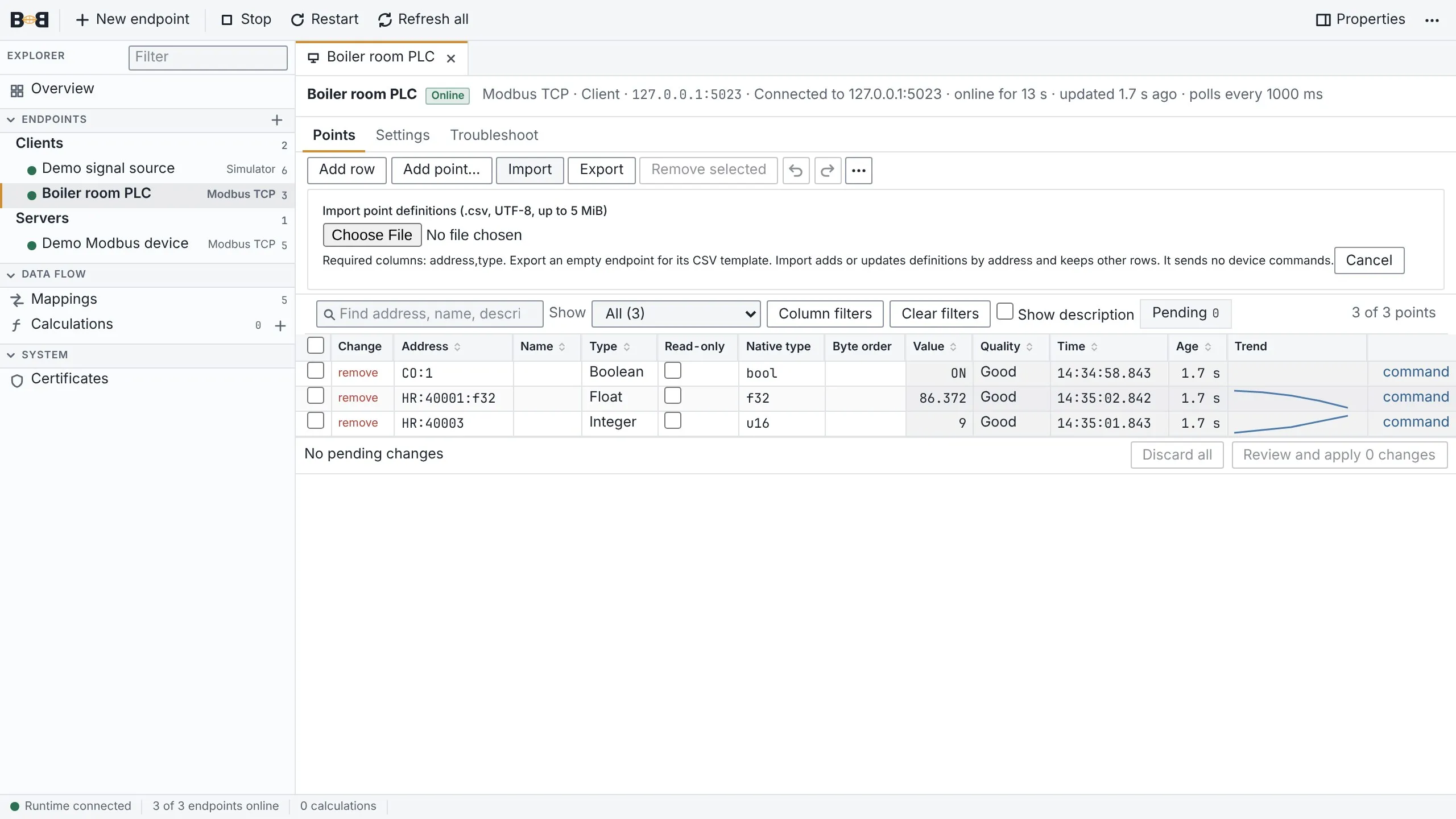
The example starts with three monitored addresses: CO:1, HR:40001:f32 and HR:40003.
The connection settings, such as host, port and unit ID, have already been configured.
Export a point list
Section titled “Export a point list”- Open the endpoint whose point list you want to save.
- Click Export.
- The browser downloads a CSV named after the endpoint. For Boiler room PLC, the filename
is
Boiler room PLC-points.csv. - Check the Exported … definitions. confirmation. Open the downloaded file in a text editor or a spreadsheet application if you want to inspect or edit it.
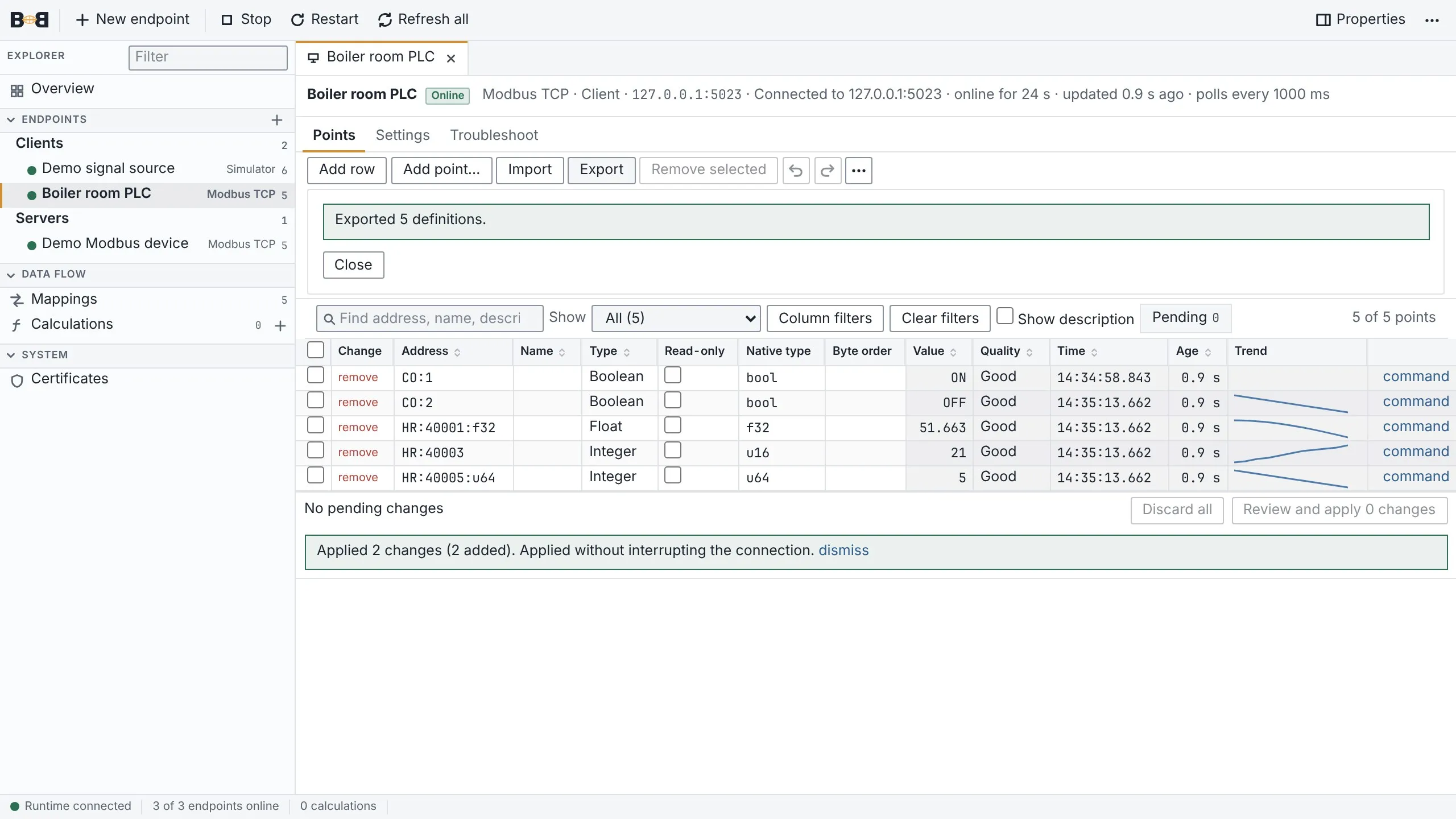
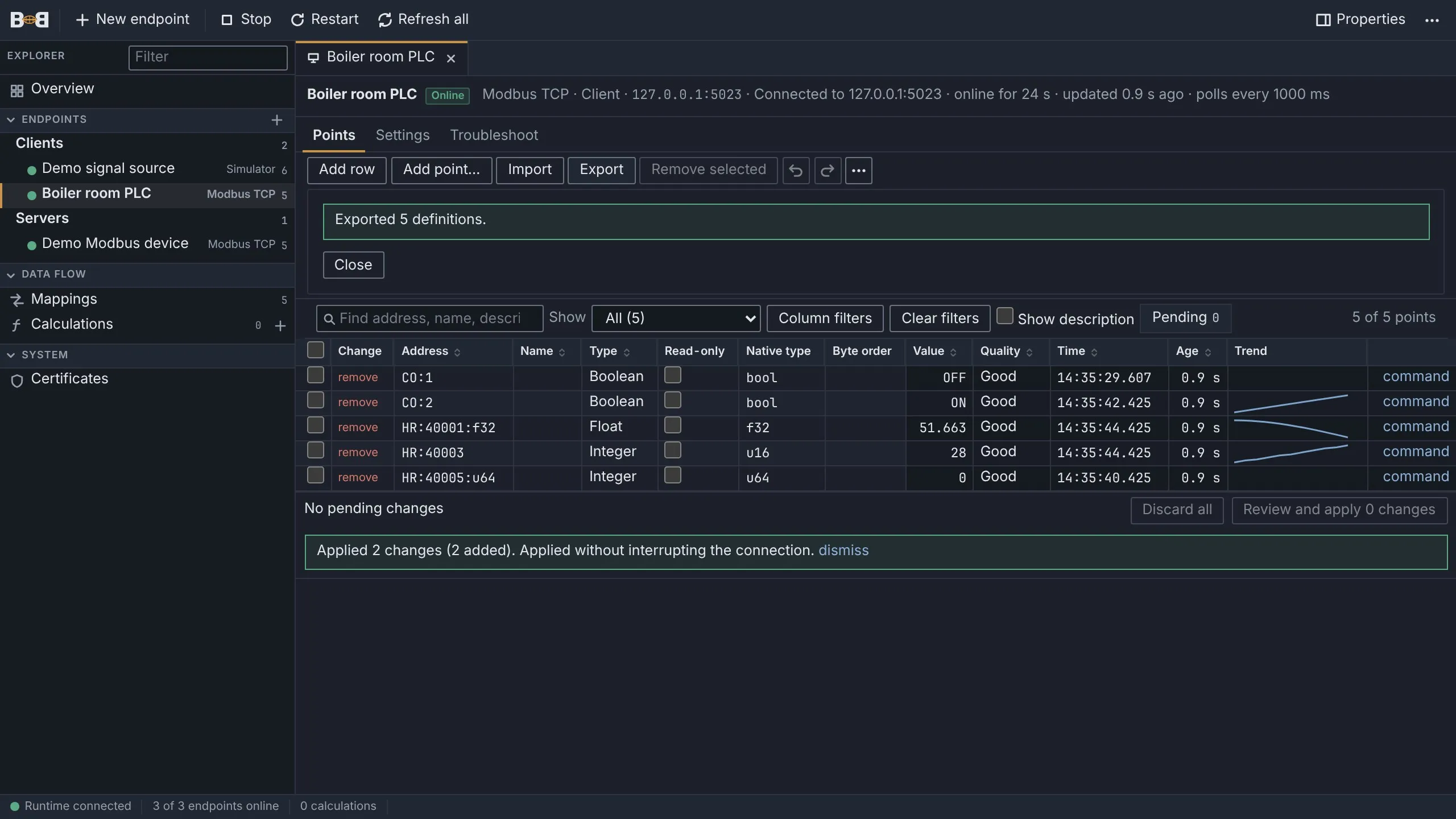
This screenshot was taken after the example import, so it exports five definitions.
Export includes all transferable configured and discovered points for this endpoint. The Find box and the Show filter do not limit the exported file. Diagnostic-only rows, such as S7 CPU state, are not included as variable definitions.
Spaces and Unicode characters are preserved in the filename. Characters that cannot be used
in a filename, such as / or :, are replaced with underscores.
Prepare the CSV
Section titled “Prepare the CSV”The simplest starting point is an export from an endpoint of the same protocol and role. An endpoint with no configured or transferable discovered points exports a header-only template.
| Column | What to enter |
|---|---|
address |
Required. The protocol’s native address or complete item/node identifier. |
type |
Required. One of Boolean, DoublePoint, Integer, Float, Counter or Bitstring. |
nativeType |
Optional column. The native encoding or point kind, where applicable. For Modbus and S7 it can also be encoded in the address. |
byteOrder |
Modbus only. Optional ABCD, CDAB, BADC or DCBA. Leave it empty to use the endpoint’s selected order. |
name |
Optional column, every protocol. The point’s name, up to 255 characters. |
description |
Optional column, every protocol. Free text about the point, up to 1024 characters; it may span lines (quote the field). Export writes name, description and readOnly last. |
readOnly |
Optional column, every protocol. true marks the point read-only: no command is sent to it (see Read-only points). false clears the mark. |
Names in an import. A file without the name column leaves the names of the points it
updates as they are. With the column, an empty cell clears a point’s name and text replaces it.
The name never decides which point a row updates: that is always the address, so a row with
another point’s name but a new address adds a point.
For an OPC UA client that browses, the exported variables carry their DisplayName from the server as the name; a name you gave a point is kept.
Read-only marks in an import. readOnly works like name: a file without the column, or an
empty cell, leaves a point’s mark as it is; true sets it and false clears it (any letter
case). Anything else is refused with the record number. Export writes true for a read-only
point and leaves the cell empty otherwise. An OPC UA or XML-DA client that browses marks the
variables the server reports as not writable.
The generic type and the nativeType describe different things. For example, Modbus Float
can use the native encoding f32 or f64. The two fields must agree with each other and with
any type encoded in the address.
Example: Modbus TCP
Section titled “Example: Modbus TCP”Download the example CSV, or save this text
as a UTF-8 file named boiler-room-modbus.csv:
address,type,nativeType,byteOrderHR:40001,Float,f32,HR:40003,Integer,u16,CO:1,Boolean,bool,HR:40005,Integer,u64,CO:2,Boolean,bool,Each data row must have the same number of fields as the header. The trailing commas in this
example represent the empty byteOrder fields.
For the three-point endpoint shown above, these rows update three existing definitions and
add HR:40005:u64 and CO:2. Protocol Bridge normalizes native addresses: HR:40001 with f32
becomes HR:40001:f32, while the default u16 is displayed as HR:40003.
To use an explicit per-point order, fill byteOrder, for example:
address,type,nativeType,byteOrderHR:40001,Float,f32,CDABThe resulting address is HR:40001:f32:CDAB. See
Finding the byte order for help choosing the correct order.
Addresses in other protocols
Section titled “Addresses in other protocols”| Protocol | Example address |
Example type |
Example nativeType |
|---|---|---|---|
| Modbus TCP | HR:40001 |
Float |
f32 |
| Siemens S7 | DB1.DBD0 |
Float |
REAL |
| OPC UA client | ns=2;s=Pump1.Speed |
Float |
Double |
| OPC DA | Plant.Pump1.Speed |
Float |
VT_R8 |
| OPC XML-DA | Area|Pump1.Speed |
Float |
double |
| IEC 104 | 1001 |
Float |
float |
| DNP3 | AI:0 |
Float |
g30v5 |
| Simulator client | 1 |
Float |
Leave empty. |
These are address-format examples, not device-specific point lists. Use identifiers and types
that exist on your device. OPC UA clients need the complete NodeId; OPC XML-DA retains the
item path before |. On OPC UA servers, use the address the server exposes.
Simulator client rows must match the configured generated address range and its generated types. CSV import does not change the simulator’s point-count setting.
File rules
Section titled “File rules”- Use
.csv, encoded as UTF-8. A UTF-8 BOM is accepted. - Import accepts comma or semicolon delimiters, detected from the header. Export uses commas.
- Quote fields containing delimiters or line breaks. Double a quote inside a quoted field.
An OPC UA identifier containing a comma can be written as
"ns=2;s=Pump,Speed". - Column order may change. Header names are case-insensitive, but required headers must be present.
- Unknown or duplicate headers are rejected. Other protocols do not accept a
byteOrdercolumn. - Blank records are ignored. The maximum file size is 5 MiB, with at most 10,000 variable rows; the merged endpoint must also stay within 10,000 definitions.
When editing a CSV in a spreadsheet, keep the address column as text so that leading zeros and
complete identifiers survive saving. Save as CSV UTF-8 rather than .xlsx.
Import and preview changes
Section titled “Import and preview changes”- Open the destination endpoint and select the Points tab.
- Click Import. The CSV selection panel opens above the points table.
- Click Choose File and select your
.csvfile. Before selection, the field displays No file chosen; after selection, it displays the selected filename.
- Wait for validation. Protocol Bridge checks the CSV structure, addresses, types and duplicate canonical addresses before offering to add the changes.
- Review the summary and table. In this example the preview reports 2 additions, 3 updates; 5 definitions after import. No validation errors., says how the change would be applied (here Applied without interrupting the connection) and lists the resulting definitions.
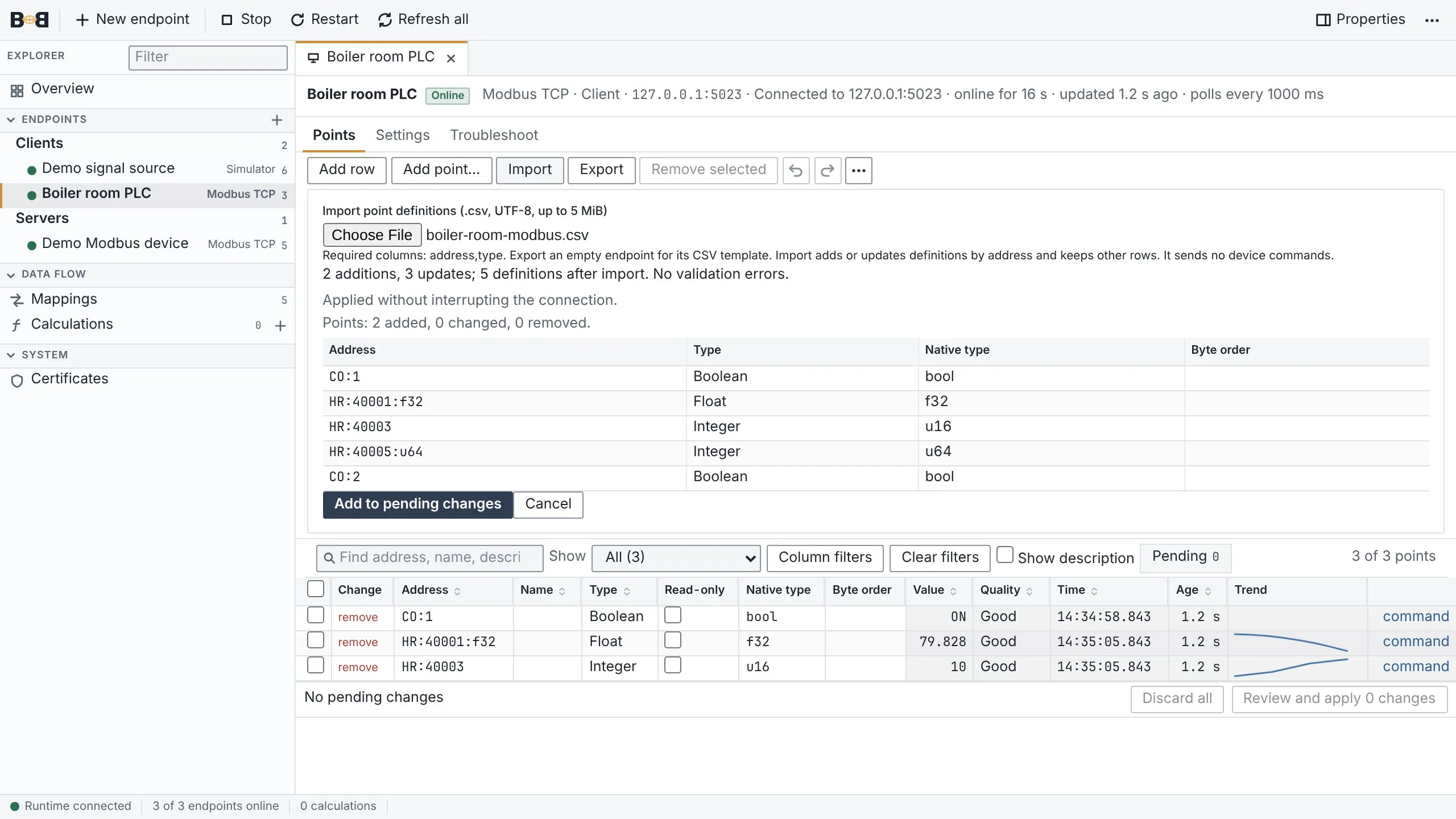
Additions are addresses not already present. Updates are CSV rows matching an existing canonical address, including rows whose fields have not changed. The preview table shows the resulting definition list; for large imports it displays the first 100 definitions.
Nothing has been saved yet. Click Cancel to leave the configuration unchanged.
Apply and verify
Section titled “Apply and verify”- Click Add to pending changes. The panel reports 2 additions and 3 updates are pending in the table; the added rows appear in the points table marked new, and updated rows whose fields change are marked as edited.
- Click Review and apply (on the toolbar or under the table). The review lists each change (here + add HR:40005:u64 Integer and + add CO:2 Boolean; updates that change nothing are left out) and how it is applied.
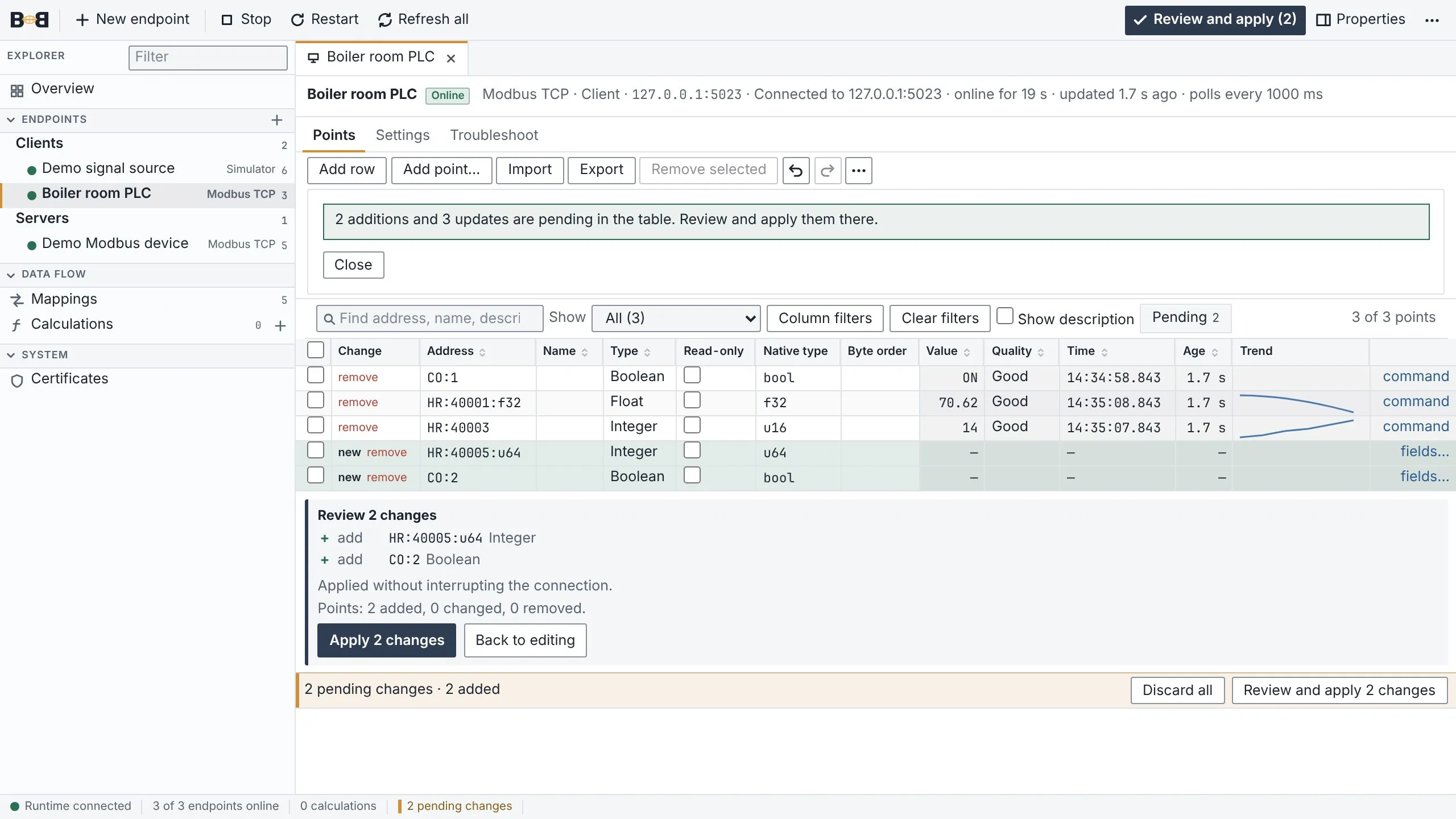
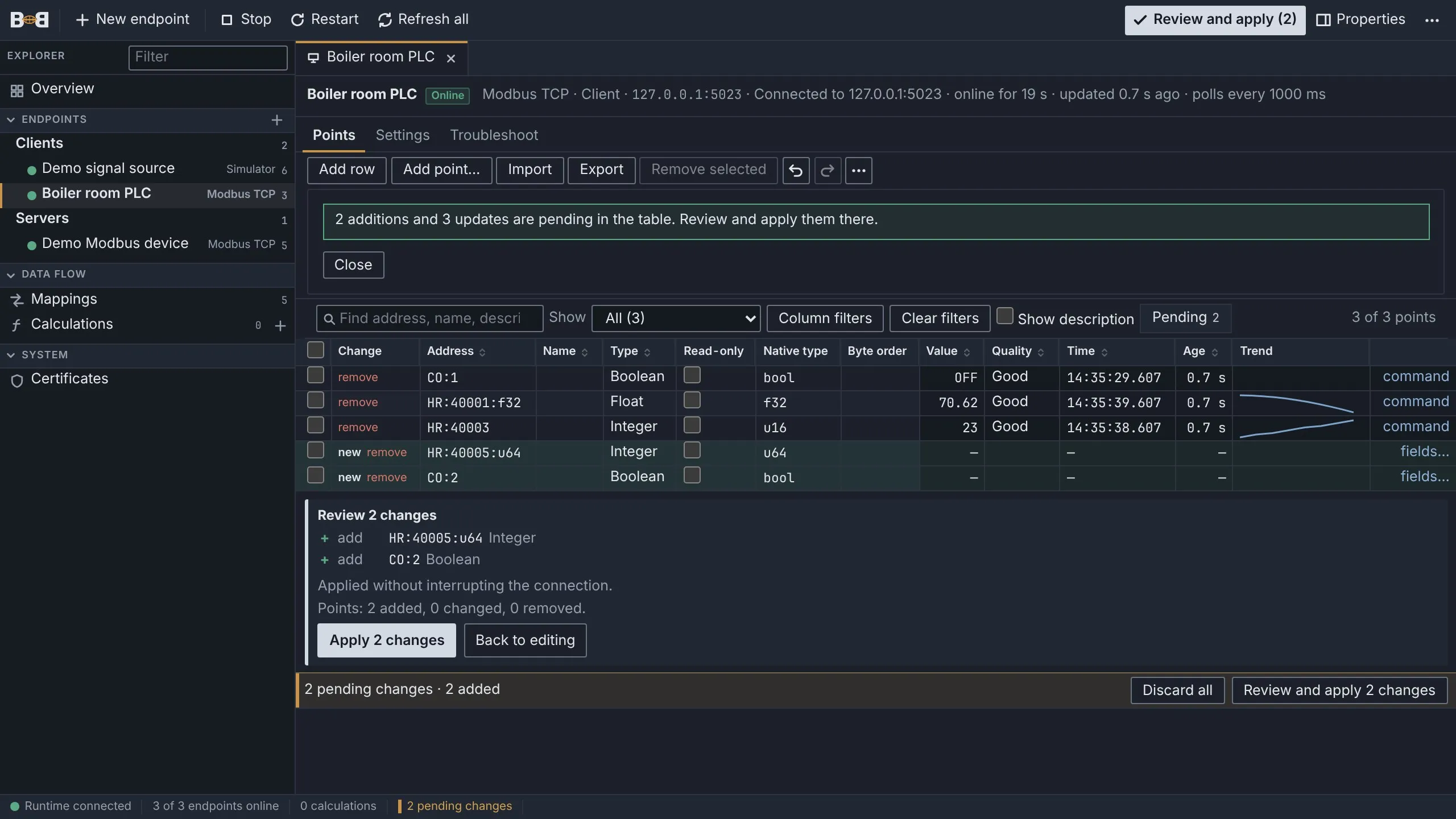
- Click Apply 2 changes and wait for the confirmation, such as Applied 2 changes (2 added). Applied without interrupting the connection.
- Verify the addresses and native types in the points table. This example now has five rows.
- Check that readings arrive and that their values and quality are appropriate for your device.
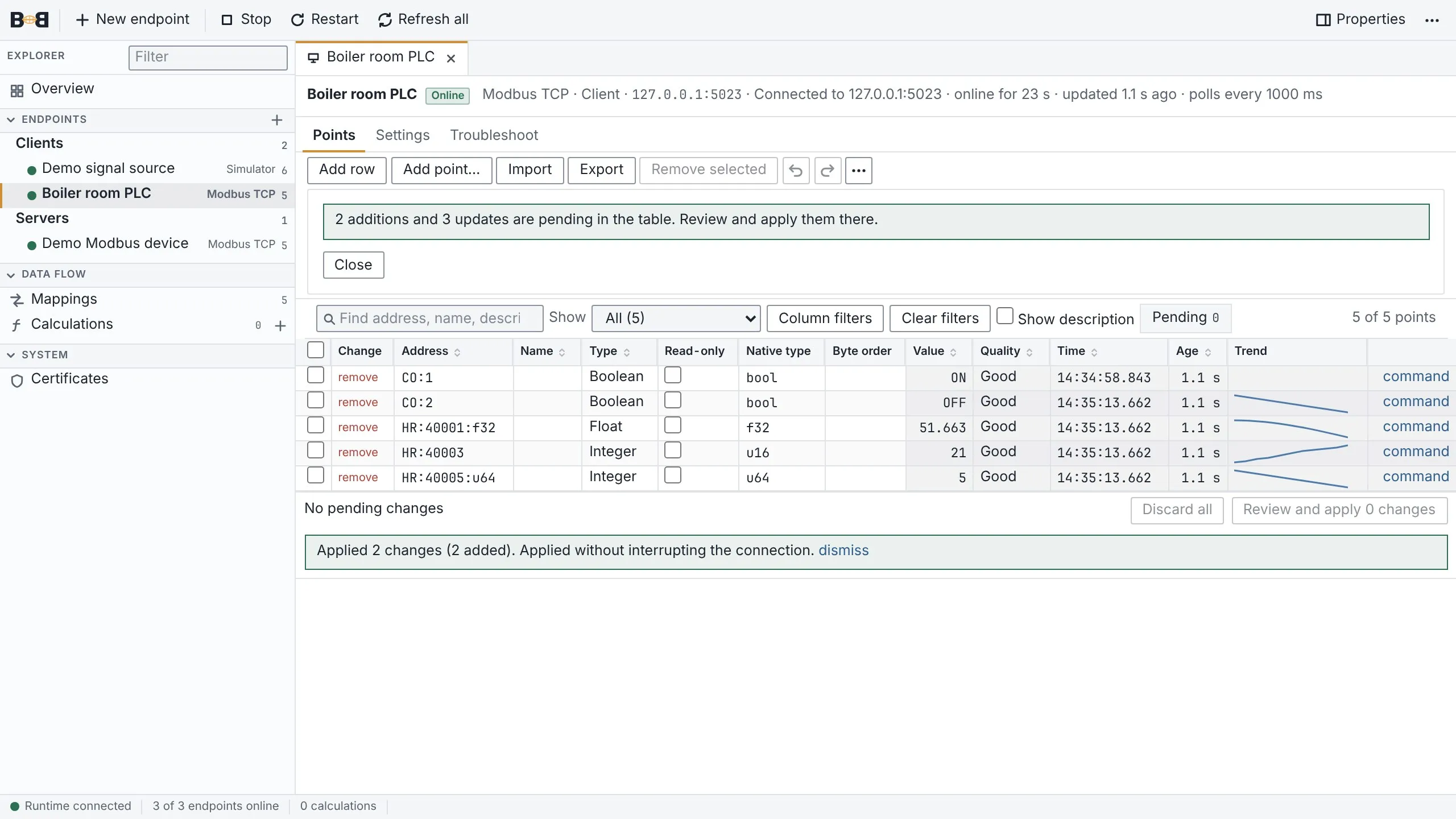
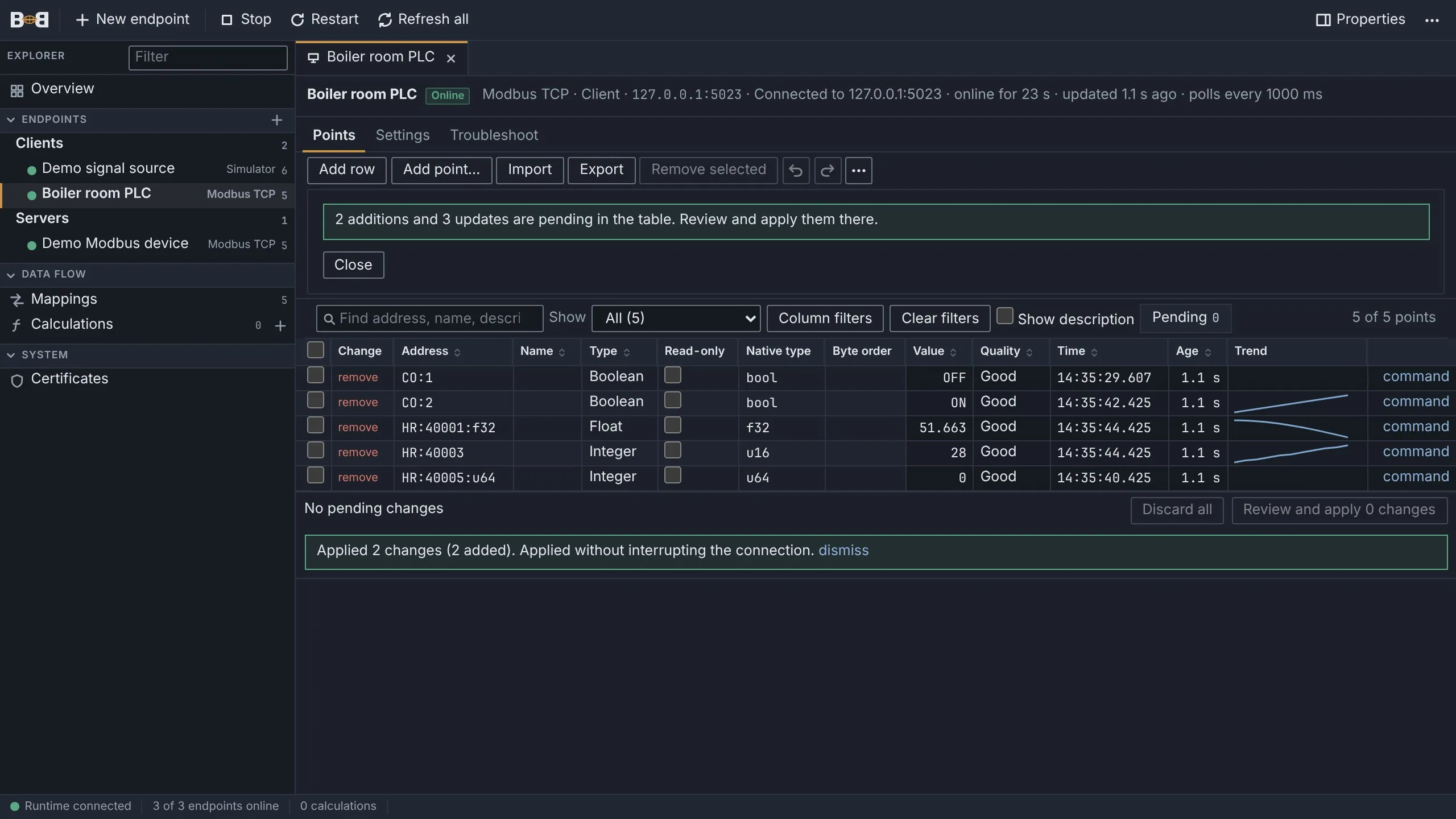
Until you apply them, the imported rows are pending changes like any other edit of the table: Undo takes them back and Discard all drops them.
Definitions are saved with the endpoint and survive an application or endpoint restart.
A configured row without a reading displays — for value and time, rather than a
fabricated zero. A live reading replaces the unavailable display when it arrives.
On polling or subscription clients, the definitions select the addresses to collect. On event-driven clients, such as IEC 104 and DNP3, they describe expected rows without suppressing other received points. Server definitions describe exposed rows; values arrive through the existing publish or mapping mechanism. Discovery settings remain unchanged.
Import adds or updates definitions. It does not delete definitions absent from the file, and importing the same file again does not create duplicate rows.
Correct an invalid file
Section titled “Correct an invalid file”An invalid file is rejected before any changes are applied. For example, this row asks for a
Boolean point while specifying the native Modbus floating-point type f32:
address,type,nativeType,byteOrderHR:40001,Boolean,f32,Protocol Bridge reports Record 2: column type: expected Float, received Boolean. There is no Add to pending changes action for the invalid preview, and the current point list remains unchanged.
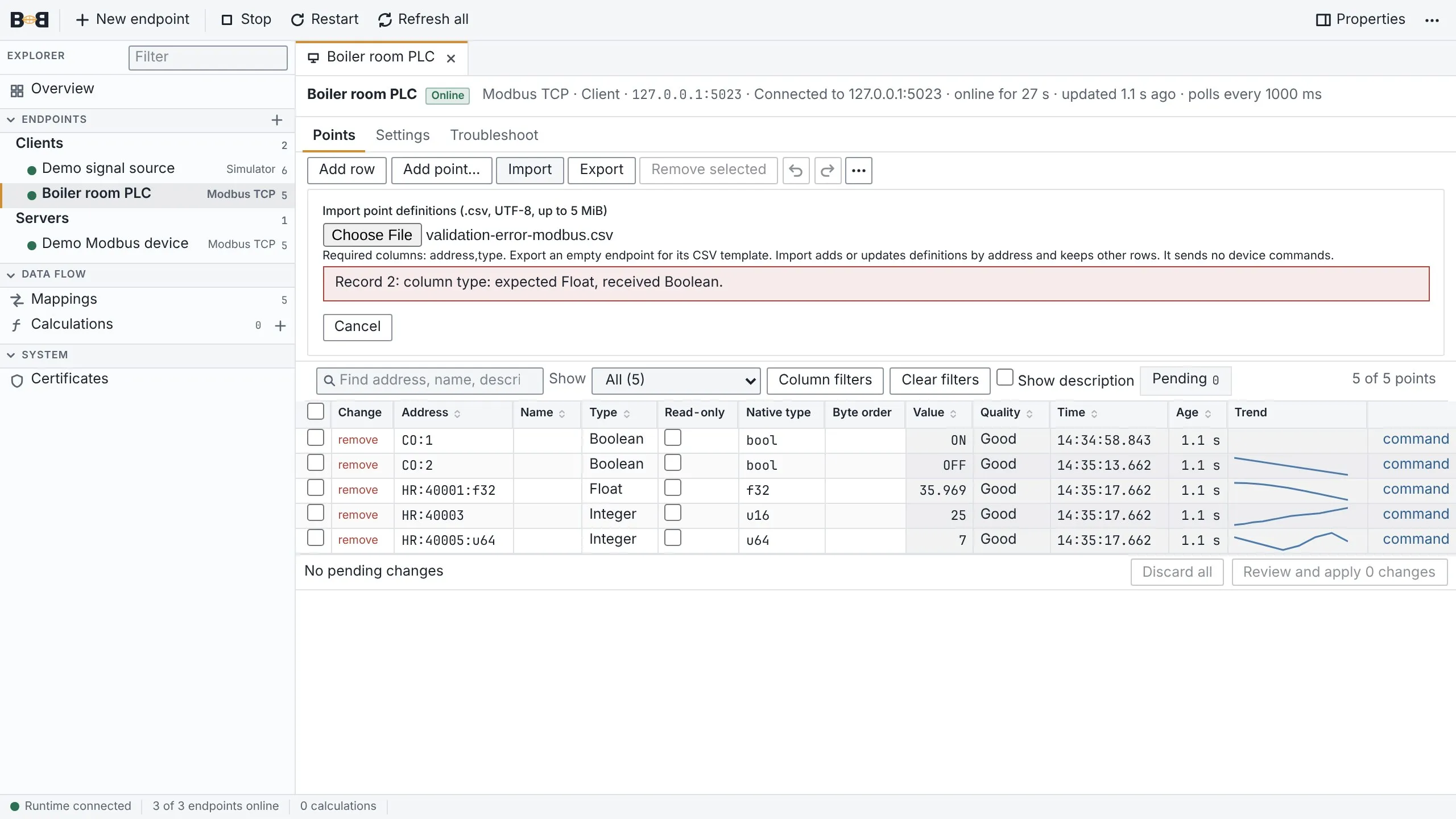
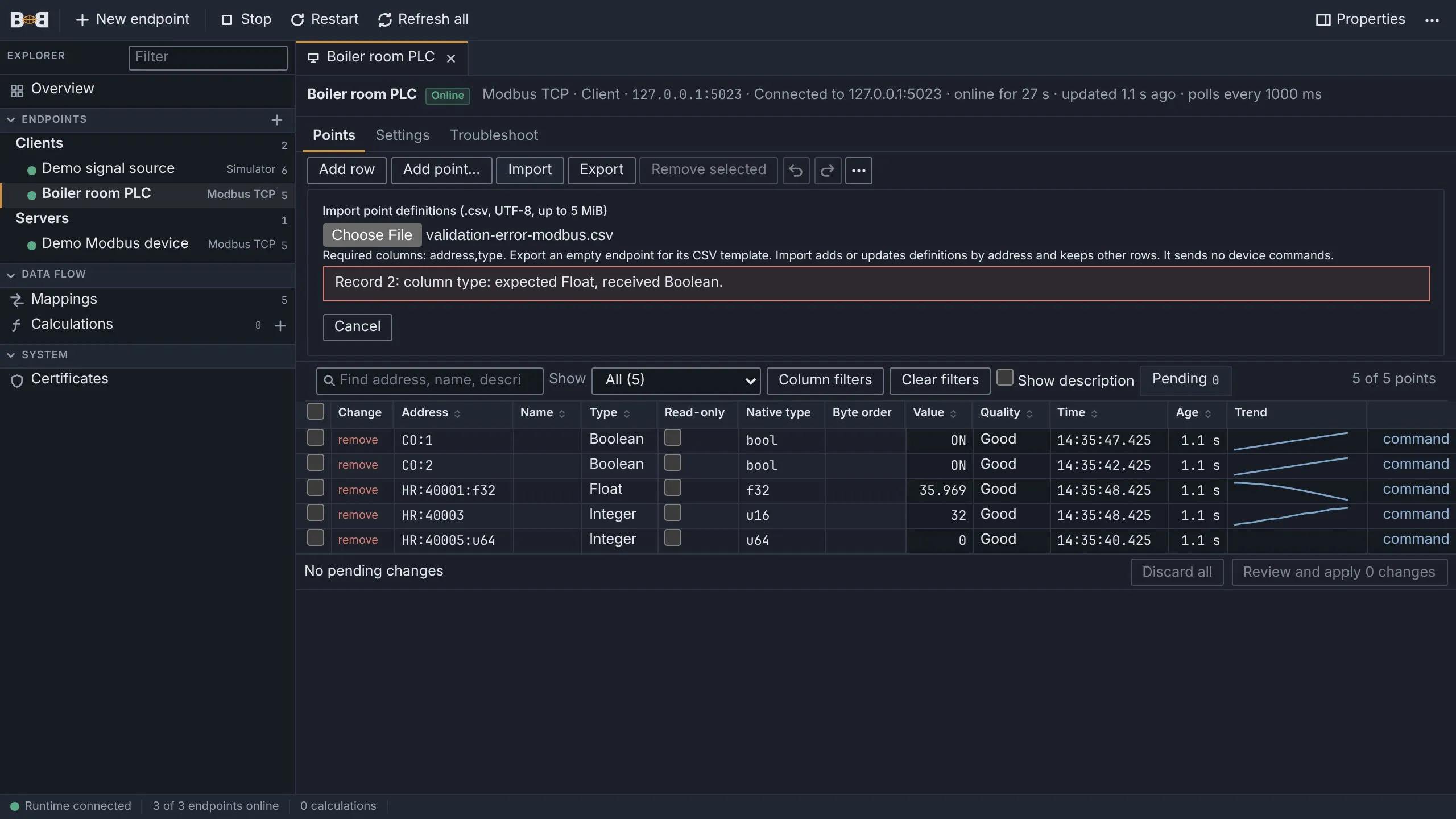
Change Boolean to Float, save the CSV and select it again to generate a fresh preview.
Record numbers refer to CSV records, including the header as record 1; a quoted multiline
field still belongs to one record.
| Message or symptom | What to do |
|---|---|
| Missing, unknown or duplicated header | Start from an export for this protocol and keep the supported column names. |
| Invalid address or incompatible type | Check the device’s address format and ensure type, nativeType and any encoded suffix agree. |
| Duplicate canonical address | Remove the repeated definition, including alternate spellings of the same address. |
| File or row limit exceeded | Reduce the file and check how many definitions will remain after merging. |
| Endpoint changed since preview | Select the file again, review a fresh preview and then add it to the pending changes. |
| Header-only file; nothing to add | Add at least one valid variable row. A template alone has no changes to apply. |
| Import succeeds but values remain unavailable | Check the connection, device addresses and quality. Use Troubleshoot a connection to diagnose the device link. |
For connection setup, see Connect to a device. For commands and publication of live values, see Live data and commands.